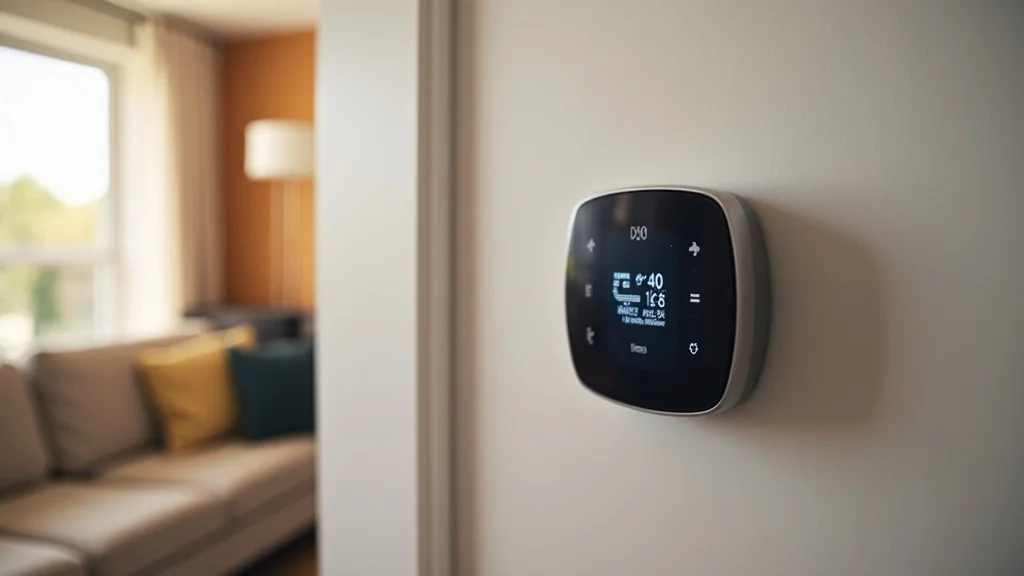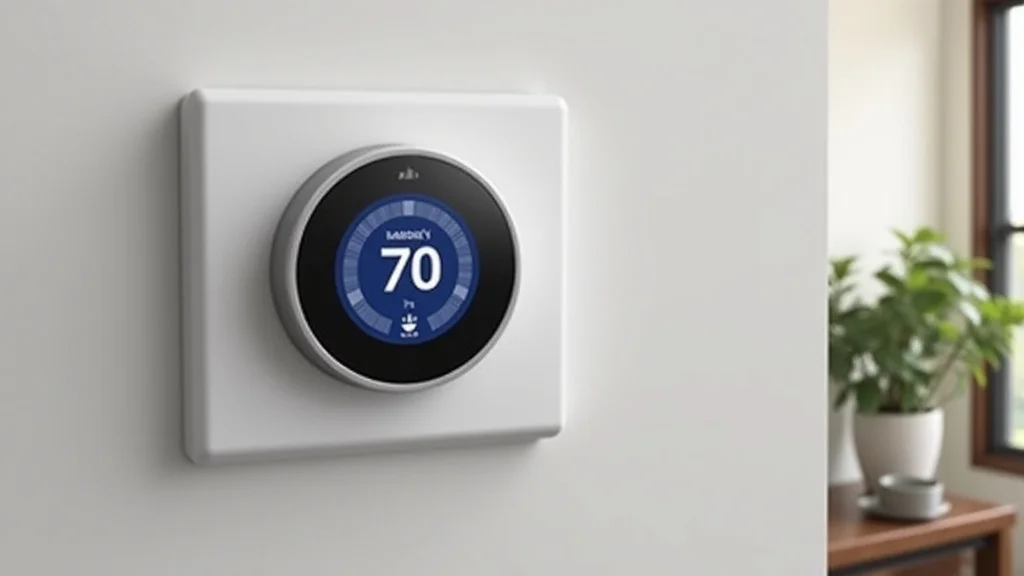
Picture this: It’s a sweltering summer day, and you’re stuck fiddling with your old thermostat, trying to find a comfortable temperature. Sound familiar? That’s where the ecobee 3 lite smart thermostat manual steps in. This guide will walk you through everything, making it easy to set up, use, and get the most out of your smart thermostat. You’ll learn how to control your home’s temperature with ease, save money on energy bills, and create a cozy home environment. Get ready to explore the ecobee 3 lite smart thermostat manual, and learn how it can transform your home comfort.
Key Takeaways
- Learn the basics of setting up and installing your ecobee 3 lite.
- Discover the key features and functions of your smart thermostat.
- Understand how to use the ecobee app for remote control and scheduling.
- Find out how to maximize energy savings with your ecobee 3 lite.
- Explore troubleshooting tips for common issues.
- Become familiar with the differences compared to other ecobee models.
Getting Started With Your Ecobee 3 Lite
The ecobee 3 lite is a smart thermostat that can revolutionize your home’s heating and cooling system. It’s user-friendly, and packed with features to improve your comfort and lower your energy expenses. Setting it up seems easy at first glance, but a simple guide can make the process smooth. From unboxing to connecting it to your home’s Wi-Fi, this section covers the initial steps to get your thermostat up and running. This section will walk you through the entire process, including important steps for a successful installation.
Unboxing and What’s Included
When you first receive your ecobee 3 lite, you’ll open the box and find several components. It contains the ecobee 3 lite thermostat itself, a backplate for wall mounting, and the power extender kit. You will find mounting screws, wire labels to mark existing wires, and a quick start guide. It also contains the important installation manual. Make sure everything is present, and familiarizing yourself with these parts beforehand makes the installation process much easier. Check that you have all the necessary parts for a simple setup.
- The ecobee 3 Lite thermostat. This is the main control unit with a sleek, minimalist design.
- The Backplate. This part attaches to your wall and allows you to mount the thermostat.
- The Power Extender Kit (PEK). This helps to work with heating systems that don’t have a C-wire.
- Mounting screws and wall anchors for secure wall attachment.
- Wire labels that will assist in labeling the wires from your old thermostat.
- The Quick Start Guide. It offers basic instructions for setup and a starting point.
Take a look at the components to know what you’re working with, and set yourself up for a hassle-free installation. Keep the packaging in case you need to return it later.
Preparation Before Installation
Before installing your ecobee 3 lite, you’ll need to do some preparation. You’ll need a screwdriver, a smartphone or tablet to download the ecobee app, and your home’s Wi-Fi network details. Turn off the power to your existing thermostat at the circuit breaker. This is a very important safety step. Next, take off your old thermostat’s cover and take a picture of the wiring. This will serve as a reference during installation. Remove the wires from your old thermostat and carefully label each one using the labels provided. This detailed preparation ensures that the installation goes smoothly.
- Gather your tools: Screwdriver, smartphone or tablet, and Wi-Fi credentials.
- Turn off the power: Locate the circuit breaker that controls your thermostat and switch it off.
- Remove the old thermostat cover and take a picture of the wiring for future reference.
- Label the wires: Use the provided labels to mark each wire before detaching them.
- Check the compatibility: Ensure your HVAC system is compatible with the ecobee 3 lite.
Completing these steps prepares you for the installation, helping you prevent errors and keeping you safe.
Installing the Ecobee 3 Lite Thermostat
The installation of the ecobee 3 lite involves attaching the backplate to your wall, connecting the wires, and mounting the thermostat. After securing the backplate and connecting the wires, you can mount the thermostat to the backplate. The app setup will then help you connect the device to your home network. Careful wiring is crucial for the efficient operation of your thermostat, so follow the directions carefully. This section provides easy instructions for a flawless installation.
- Attach the backplate to the wall. Ensure it’s level and secure, using the provided screws.
- Connect the wires: Carefully attach the labeled wires to the corresponding terminals on the ecobee 3 lite’s backplate. Use the wiring diagram that came with your manual.
- If you’re unsure about your existing wiring, use the ecobee app or a professional HVAC technician.
- Mount the thermostat: Snap the ecobee 3 lite thermostat onto the installed backplate.
- Turn on the power at the circuit breaker and set up the thermostat through the app.
After finishing these steps, your ecobee 3 lite is physically installed and ready for setup.
Connecting to Wi-Fi and the Ecobee App
Once you’ve installed the hardware, you’ll link your new smart thermostat to your home’s Wi-Fi network and get the ecobee app. The app is your command center for controlling the thermostat. During setup, the device will search for available networks. The device will then ask for your network password, so connect and give the device access to the internet. This section gives you all the steps needed to get your thermostat online and fully accessible. You’ll also explore the app’s initial features and how to make sure the app works with the device.
- Download the ecobee app on your smartphone or tablet.
- Create an account or log in if you already have one.
- Add your ecobee 3 lite to the app by following the on-screen instructions.
- The app will guide you through connecting to your Wi-Fi network.
- Enter your Wi-Fi password when prompted.
The app will verify the connection and confirm everything is set up. You can now use your smartphone to control the temperature of your home.
Using Your Ecobee 3 Lite: Features and Functions
The ecobee 3 lite is more than a simple thermostat; it’s a hub for controlling your home’s climate. It provides a variety of functions like temperature scheduling, energy saving recommendations, and compatibility with other smart home systems. You can adjust the temperature, set schedules, and monitor energy use. The following sections explore how to make the most of its features and settings to improve your comfort and help save money on your energy bills. Discover the key features that set the ecobee 3 lite apart and how to use them.
Understanding the Touchscreen Interface
The ecobee 3 lite has a user-friendly touchscreen interface. This allows you to quickly adjust the temperature, see the current settings, and access the menu. The touchscreen responsiveness allows you to easily swipe through the menus and tap on the options. Familiarizing yourself with the interface is key to taking full advantage of the thermostat’s many features. The interface helps you explore settings, change your preferences, and control your home’s climate with just a few taps.
- The home screen: displays the current temperature, set point, and system mode (Heat, Cool, Auto, Off).
- Temperature adjustment: use the up and down arrows to modify the temperature settings.
- Menu access: tap the menu icon to access settings, schedules, and other features.
- System modes: switch between Heat, Cool, Auto, and Off modes by tapping the mode button.
- Status bar: it provides information on Wi-Fi connection and other system statuses.
Knowing the interface allows you to change settings quickly, giving you more control over your home’s climate.
Setting Up Temperature Schedules
One of the best features of the ecobee 3 lite is its scheduling feature, allowing you to create different temperature settings for various times of the day or week. You can adjust these schedules to match your lifestyle and maximize energy savings. Set schedules for when you are away and when you are home, saving energy when you don’t need it. Scheduling helps to optimize the thermostat’s operation, providing comfort when you need it while conserving energy.
- Accessing the schedule: go to the menu and select “Schedule” or “Program”.
- Creating custom schedules: set different temperatures for weekdays and weekends, and for different times of the day.
- Using pre-set schedules: ecobee provides some pre-set schedules that you can start with.
- Adding events: create additional events to fit your lifestyle, like ‘Away’ or ‘Sleep’.
- Saving and activating the schedule: after setting your schedule, ensure it’s saved and active.
By scheduling your thermostat, you can automatically adjust the temperature to your needs and save money.
Utilizing Smart Home Integration
The ecobee 3 lite works with several smart home systems, like Amazon Alexa, Google Assistant, and Apple HomeKit. This means you can control your thermostat with voice commands or integrate it into your existing smart home setup. Integrate the thermostat to control it with other devices to create a more efficient and comfortable environment. From adjusting the temperature by voice to setting up smart home routines, integration enhances the ecobee 3 lite experience.
- Amazon Alexa: ask Alexa to change the temperature or check the current settings.
- Google Assistant: use voice commands to control your thermostat through Google Home devices.
- Apple HomeKit: integrate the ecobee 3 lite with your HomeKit setup for easy control.
- Smart home routines: create scenes and routines that include your thermostat.
- Third-party integrations: integrate with other compatible smart home devices for unified control.
Smart home integration streamlines your home’s comfort, providing another level of user-friendly control.
Saving Energy and Optimizing Performance
The ecobee 3 lite is designed to help you save energy and reduce your utility costs. This part explores the energy-saving features, how to monitor your energy usage, and tips for optimizing your thermostat’s performance. From energy-saving settings to smart home integrations, discover how to reduce energy waste. Knowing these energy-saving practices ensures you make the most of your ecobee 3 lite and improve your home’s efficiency.
Understanding Energy Saving Features
The ecobee 3 lite comes with several features that help conserve energy. These features help you reduce your carbon footprint and save on energy costs. The Smart Away and Smart Home features use your phone’s location to automatically adjust the thermostat when you’re away or home. These features create energy savings by automatically adjusting temperatures. These settings help you make energy savings easy and automatic.
- Smart Away: uses your phone’s location to automatically adjust the temperature when you are away.
- Smart Home: automatically adjusts the temperature when you are at home.
- Energy Savings Reports: view detailed reports on your energy usage and identify areas for improvement.
- Eco+ features: these features help optimize your system for energy efficiency.
- Alerts and notifications: get notifications about potential issues.
These features work to balance comfort and energy savings.
Monitoring Energy Usage
The ecobee 3 lite can monitor your home’s energy usage. You can view your energy consumption, identify patterns, and adjust your settings for better efficiency. View reports on energy use, compare usage over time, and learn how adjustments affect your utility bills. Energy monitoring is essential for understanding your system’s performance and making educated changes. Knowing your energy use helps you make data-driven decisions about your home’s climate.
- Access energy reports: navigate the app or thermostat menu to view energy usage.
- Understand the data: charts and graphs show your energy consumption over time.
- Identify patterns: find out when you’re using the most energy.
- Compare data: compare your usage with previous months or years.
- Make changes: adjust your settings based on the data to save money.
Using the energy usage data will guide your optimization efforts, resulting in greater efficiency.
Tips for Optimizing Performance
To get the most out of your ecobee 3 lite, consider these tips. These practices improve your system’s efficiency and ensure optimal performance. Position your thermostat away from sunlight, drafts, and heat sources, for accurate temperature readings. Regular maintenance and setting the proper schedules helps ensure that your system runs smoothly. Implement these tips to increase your savings and improve your home’s comfort. By combining these tips, you can maximize your thermostat’s efficiency and performance.
- Place the thermostat in a central location, away from direct sunlight, drafts, or heat sources.
- Regularly check and clean the thermostat.
- Ensure your HVAC system is properly maintained and functioning correctly.
- Use the energy-saving settings.
- Adjust your temperature schedules based on your lifestyle.
By using these tips, you’ll be able to optimize your thermostat’s function.
Troubleshooting Common Issues
While the ecobee 3 lite is easy to use, you might face issues. This section walks you through common problems and their solutions. From Wi-Fi connection problems to temperature setting concerns, this section provides solutions to get your thermostat working correctly. This knowledge helps you troubleshoot common problems and fix minor issues. Familiarizing yourself with the troubleshooting tips will enable you to solve many problems.
Dealing With Wi-Fi Connection Problems
Wi-Fi problems can prevent you from controlling your thermostat remotely. This problem often results in a loss of functionality. It is important to know the steps to troubleshoot and restore the connection. Common causes include an incorrect Wi-Fi password or a weak signal. If you have an issue, start by checking your network and password. These steps should fix the problems and get your device online.
- Check your Wi-Fi: Ensure your home Wi-Fi network is working and that other devices can connect.
- Verify your Wi-Fi password: make sure you’ve entered the correct password for your network.
- Restart your thermostat: sometimes restarting the thermostat fixes connectivity issues.
- Move the thermostat: place your thermostat closer to your Wi-Fi router to improve signal strength.
- Contact support: if the problems persist, contact ecobee support for help.
Knowing these steps gives you a quick solution if Wi-Fi problems occur.
Addressing Temperature Setting Issues
If the temperature settings aren’t what you expect, a few things could be happening. Some problems may be from incorrect calibration or system malfunctions. Ensure your settings match your preferences and that the system is operating as it should. Adjusting the settings and making sure the system is calibrated can often resolve issues. When this happens, follow these instructions to get your thermostat operating as it should.
- Check the set point: verify that the thermostat is set to the temperature you want.
- Verify the system mode: make sure your thermostat is in the correct mode (Heat, Cool, Auto).
- Check sensor calibration: confirm the thermostat’s temperature readings are correct.
- Check the location: ensure the thermostat is placed correctly, away from heat sources.
- Contact a professional: if the problems keep occurring, consider contacting an HVAC technician.
These actions can fix the setting problems, giving you control of your home’s temperature.
Troubleshooting Display and App Problems
Sometimes you will have display issues or problems with the app. Some common problems include a frozen display or the app not showing the correct settings. These issues can disrupt your interaction with the thermostat. Fortunately, you can fix these problems by rebooting the device or deleting and reinstalling the app. You can restore your system and continue using your device. By understanding these actions, you can solve display and app problems.
- Restart the thermostat: a simple reboot can fix display freezes or glitches.
- Update the app: make sure the ecobee app on your phone is up-to-date.
- Clear app cache: remove the app’s cache to resolve data issues.
- Reinstall the app: uninstall and then reinstall the app to correct system errors.
- Contact support: contact ecobee support for more help if problems persist.
Follow these steps to ensure you can always access and control your thermostat.
Ecobee 3 Lite vs. Other Ecobee Models
The ecobee 3 lite is one of the thermostat models available from ecobee, and it’s important to understand how it compares to other models. Understand the differences between your thermostat and the other available versions, so you know the features. Compare the models based on features, price, and capabilities. These comparisons give you insights that can help you select the ideal model. This section helps you understand your device and its place in the ecobee product line.
Features and Functionality Comparison
To compare the ecobee 3 lite to other ecobee models, you must consider the range of features and functionality available. The ecobee 3 lite, for instance, focuses on core functions and energy efficiency, and it includes features like a touchscreen, remote control, and smart home integration. Other versions include extras, like a built-in speaker or sensors. Understanding the differences helps you assess which model best meets your home’s requirements. This comparison shows you the differences to ensure you use your device to its fullest.
| Feature | Ecobee 3 Lite | Ecobee SmartThermostat with Voice Control | Ecobee Enhanced |
|---|---|---|---|
| Touchscreen | Yes | Yes | Yes |
| Remote Sensors Included | No | Yes (with purchase) | Yes |
| Voice Control | No | Yes (built-in speaker) | Yes (with remote speaker) |
| Energy Star Certified | Yes | Yes | Yes |
Knowing these differences lets you evaluate your thermostat relative to the other products.
Cost and Value Analysis
In addition to the features, the price and value of each ecobee model is something you should consider. Some models cost more, but they come with extra features or better features. Consider how each model fits your budget and offers value. Compare each model’s feature set with its price tag. The comparison below can assist in making your decision, so you can choose the right one for you. This comparison can help you determine the overall worth of each model.
- Ecobee 3 Lite: This is the most cost-effective option, offering basic smart features.
- Ecobee SmartThermostat with Voice Control: The mid-range choice, includes extra features and more features.
- Ecobee Enhanced: The high-end option has a higher price, with high-end features and capabilities.
Considering all these things can help you determine the best option to fit your needs.
User Experience and Compatibility
The user experience and compatibility are important, especially when choosing the best thermostat for you. These aspects are important when comparing different ecobee models. Some models offer better designs or more intuitive interface. The ability of a thermostat to integrate with your existing smart home setup will also be a factor. When you see each one, you will see what is different and what to look for. These factors will help you make the best choice to fit your home and lifestyle.
- User interface: all models have touchscreen interfaces, but the design and responsiveness can vary.
- Smart home integration: all models are compatible with smart home systems such as Alexa, Google Assistant, and Apple HomeKit.
- Remote sensors: the availability and number of remote sensors may vary across models.
With an understanding of the user experience and the different types of compatibility, you can make the right choice.
Common Myths Debunked
There are some common misconceptions about smart thermostats, and this section will provide facts to dispel those myths. Learn the truth about smart thermostats and how they operate. This knowledge removes false assumptions. This section will clarify what you believe about your thermostat.
Myth 1: Smart Thermostats Are Difficult to Install
Many people think installing a smart thermostat is difficult, and requires a professional. The truth is that most smart thermostats, like the ecobee 3 lite, are made with user-friendly installation procedures. Ecobee thermostats usually include step-by-step instructions. Many people can install them without extra help. The whole installation is designed to be simple for most homeowners.
Myth 2: Smart Thermostats Only Benefit Those with High Heating Bills
Some believe that smart thermostats are only helpful for those with high heating bills. Even those with average energy consumption can still benefit. With scheduling and energy-saving capabilities, even small energy reductions can add up. Smart thermostats are a smart investment, regardless of your current energy usage.
Myth 3: Smart Thermostats Aren’t Secure
There is a concern that smart thermostats aren’t secure and that they can be easily hacked. Today’s smart thermostats include security to protect your privacy and information. ecobee uses encryption and regular security updates to prevent unauthorized access. The security features of these thermostats are created to protect your system.
Myth 4: Smart Thermostats Are Not Worth the Investment
It’s a misconception that smart thermostats are not worth the investment. Smart thermostats give you control over energy usage, saving you money. They let you schedule temperatures and optimize your usage for greater efficiency. These savings make them a smart investment for homeowners.
Myth 5: All Smart Thermostats Are the Same
Another myth is that all smart thermostats are the same. In reality, smart thermostats vary in features, capabilities, and compatibility. Some come with more advanced features, such as voice control. By exploring these features, you can find one that fits your needs.
Frequently Asked Questions
Question: How do I know if my HVAC system is compatible with the ecobee 3 lite?
Answer: Check the compatibility checker on the ecobee website, or consult with an HVAC professional.
Question: Can I control my ecobee 3 lite from my smartphone?
Answer: Yes, you can control your thermostat remotely using the ecobee app.
Question: What happens if my Wi-Fi goes down?
Answer: The thermostat will continue to operate based on your pre-set schedules.
Question: Does the ecobee 3 lite work with remote sensors?
Answer: No, the ecobee 3 lite does not ship with remote sensors, but you can purchase them separately.
Question: How often should I change the air filter in my HVAC system?
Answer: Usually, every 1 to 3 months, but follow your HVAC system’s recommendations.
Final Thoughts
You’ve learned about the ecobee 3 lite smart thermostat manual and how it can help you get the most out of your device. You’ve explored how to install it, use its key features, and troubleshoot common issues. From scheduling temperatures to energy-saving tips, this guide gives you the tools to create a comfortable, efficient home environment. By using the app, the features, and your knowledge, you can begin saving energy and money. Embrace the simplicity and functionality of your ecobee 3 lite to transform your living space. Start using the features discussed to enjoy a smarter, more efficient home.